First steps
From download to your first mute in under a minute.
1. Install it
With winget, PowerShell or the installer (see Download). Mutto opens by itself at the end.
2. Press Ctrl+Shift+M
The pill shows up at the top of the screen and a short falling tone confirms it: the microphone is muted in every app. Press it again to talk.
Ctrl+Shift+M
3. Look at the tray
The icon turns red while you're muted. One click toggles it; right-click opens the menu. If it's hidden behind the little ^ arrow, drag it onto the taskbar.
4. Set up your phone Pro
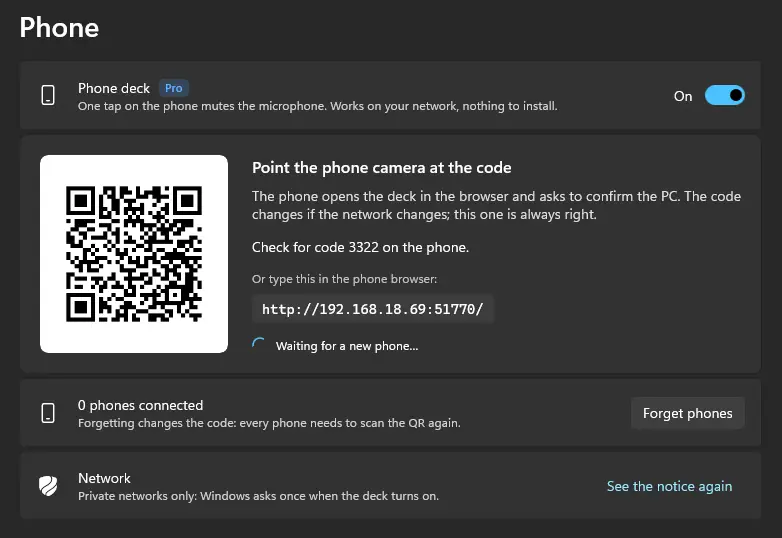
In Settings › Phone, point the camera at the QR code. Your phone becomes a button and vibrates when the PC confirms.
Shortcuts
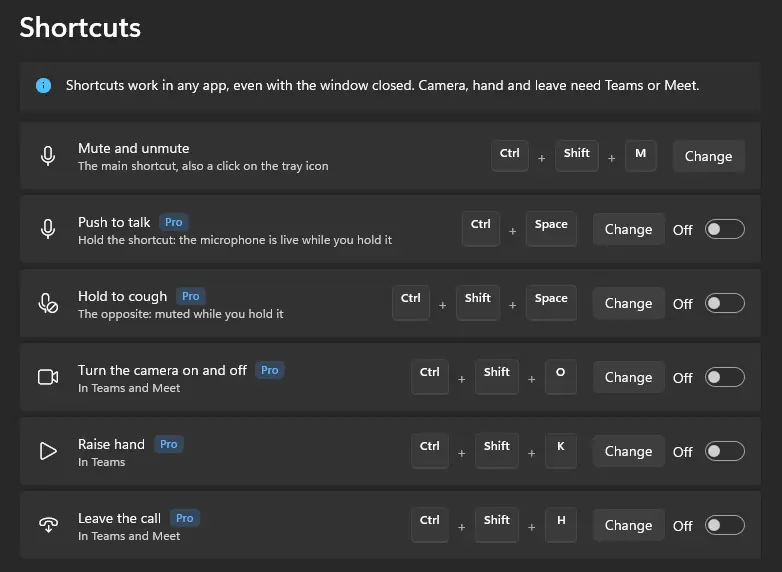
They work in any app, even with the window closed. Change any of them in Settings › Shortcuts.
| Mute and unmuteAlso a click on the tray icon | Ctrl + Shift + M |
| Push to talk ProThe microphone is live while you hold it | Ctrl + Space |
| Hold to cough ProThe opposite: muted while you hold it | Ctrl + Shift + Space |
| Turn the camera on and off ProIn Teams and Meet | Ctrl + Shift + O |
| Raise hand ProIn Teams | Ctrl + Shift + K |
| Leave the call ProIn Teams and Meet | Ctrl + Shift + H |
Phone Pro
Your phone becomes a button for mute, camera and leave. Nothing to install: it opens in the phone's browser and talks straight to the PC over your Wi-Fi, with no server in between.
- Open Settings › Phone and turn it on.
- The first time, Windows asks about the firewall: check only “Private networks”.
- Point the phone camera at the QR code and check the 4-digit code.
Teams Pro
With the integration, the microphone icon inside Teams follows Mutto, and the camera, hand and leave shortcuts start working. It uses Teams' official API.
- In Teams, open Settings › Privacy › Manage API and turn on “Enable API”.
- In Mutto, open Settings › Integrations and turn on Microsoft Teams.
- In a meeting, press the mute shortcut: Teams asks whether Mutto can connect. Click Allow. From then on it connects by itself.
Google Meet Pro
Meet has no API on the computer, so the integration is an extension for Chrome and Edge. It only talks to Mutto on this PC and sends nothing out.
- Install the Mutto extension in Chrome or Edge (it reaches the stores at launch).
- Open a Meet call: the first extension connects by itself.
- To connect another browser, click Settings › Integrations › “Connect another browser” and open the extension there within 2 minutes.
License
Mutto starts with 7 days of Pro. After that it goes back to the free plan, which never locks: shortcut, tray, pill and sound keep working.
- Bought it? The key arrives by email. Click “Activate in the app”, or paste the key in Settings › License › Activate a key.
- The key works on all your PCs and includes 1 year of updates. After that, Mutto keeps working on the last version released in that year.
- Refund within 14 days, no questions asked: how it works.
Common problems
Phone won't connect? It's almost always the firewall: in Settings › Phone › Network, see the notice again and check only “Private networks”. Also make sure the phone is on the same Wi-Fi as the PC; guest networks usually isolate devices.
The call app didn't go mute
Mutto mutes Windows' default microphone and default communications microphone. If the app uses a different one (a USB headset, for example), make that microphone the default in Settings › System › Sound, or let the app use the Windows default.
The icon disappeared from the tray
Windows hides new icons behind the little ^ arrow. Click it and drag the microphone onto the taskbar.
Windows showed a warning when installing
That's SmartScreen saying the app is new. Click “More info” and “Run anyway”, or install with winget or PowerShell, which don't show the warning.
Didn't find the answer? Write to contato@racoelho.com.br.